Let’s take a look at some hidden settings you may not know can help with enhance your experience if you have hearing loss.

Your phone and computer have more accessibility tools tucked inside than you might realize. With just a few taps, you can boost call clarity, turn on live captions, and customize alerts so you never miss an important moment. These small adjustments can make a big difference in your daily communication.
If you’ve ever felt frustrated trying to follow a phone call or video chat, you’re not alone. The good news is that today’s devices are designed with accessibility in mind, and you don’t need to be tech-savvy to take advantage of them. Let’s walk through some helpful settings together.
Adjust Audio Balance and Mono Sound
If you hear better in one ear than the other, your device’s audio balance setting can shift sound toward your stronger side. Both iPhone and Android phones include a slider in the accessibility settings that lets you fine-tune the left and right balance to your comfort.
You can also enable Mono Audio, which combines stereo channels into a single track so you don’t miss anything if you’re using only one earbud or favor one ear. This works wonderfully when listening to music, podcasts, or audiobooks, and it pairs well with many apps designed for hearing loss.
Customize Your Ringtones, Alerts, and Vibrations
Depending on your type of hearing loss, higher-pitched ringtones can be harder to hear, so try switching to a lower, fuller tone that’s easier to pick up. Most phones allow you to preview different sounds before choosing one, and you can also raise the alert volume independently from your call volume.
Vibration patterns and flashing LED alerts are another great option. iPhones offer “LED Flash for Alerts,” while many Android phones include flash notifications too. These visual cues are especially helpful at night or in noisy environments where you might miss a sound.
Pair Your Hearing Aids with Your Devices
Many modern hearing aids can connect directly to smartphones and computers through Bluetooth, streaming calls, videos, and music straight into your ears. iPhones support a feature called Made for iPhone Hearing Aids, while Android offers similar pairing through ASHA-compatible devices.
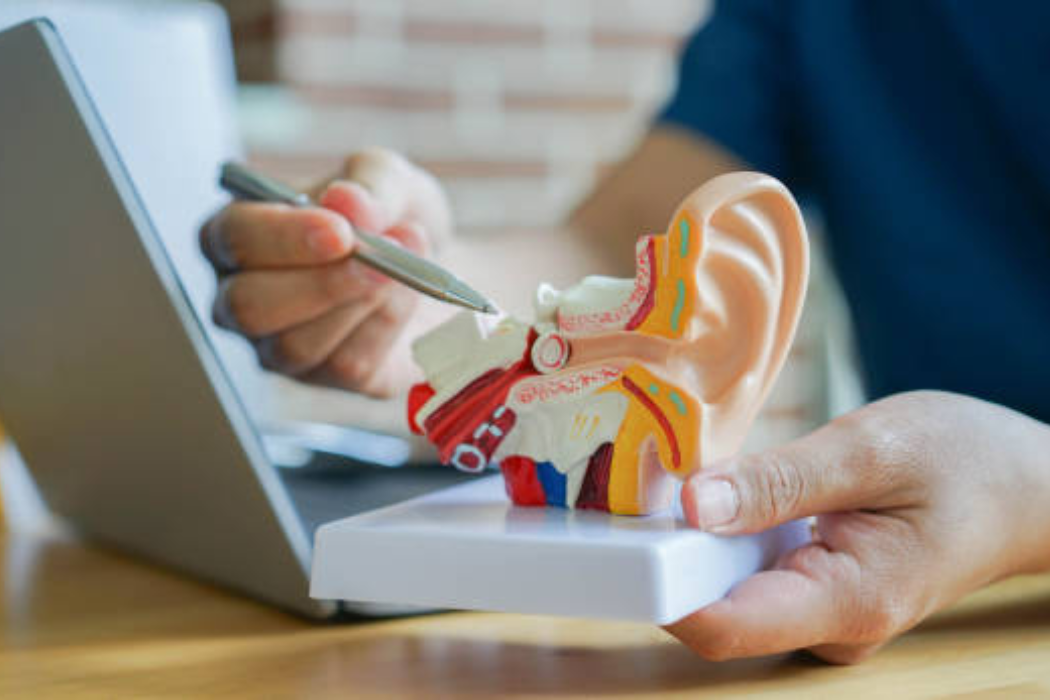
If you’re not sure whether your hearing aids are compatible, your audiologist can walk you through pairing and adjusting settings. You might also explore other communication tools that complement your hearing aids.
Take Advantage of Captioned Calling
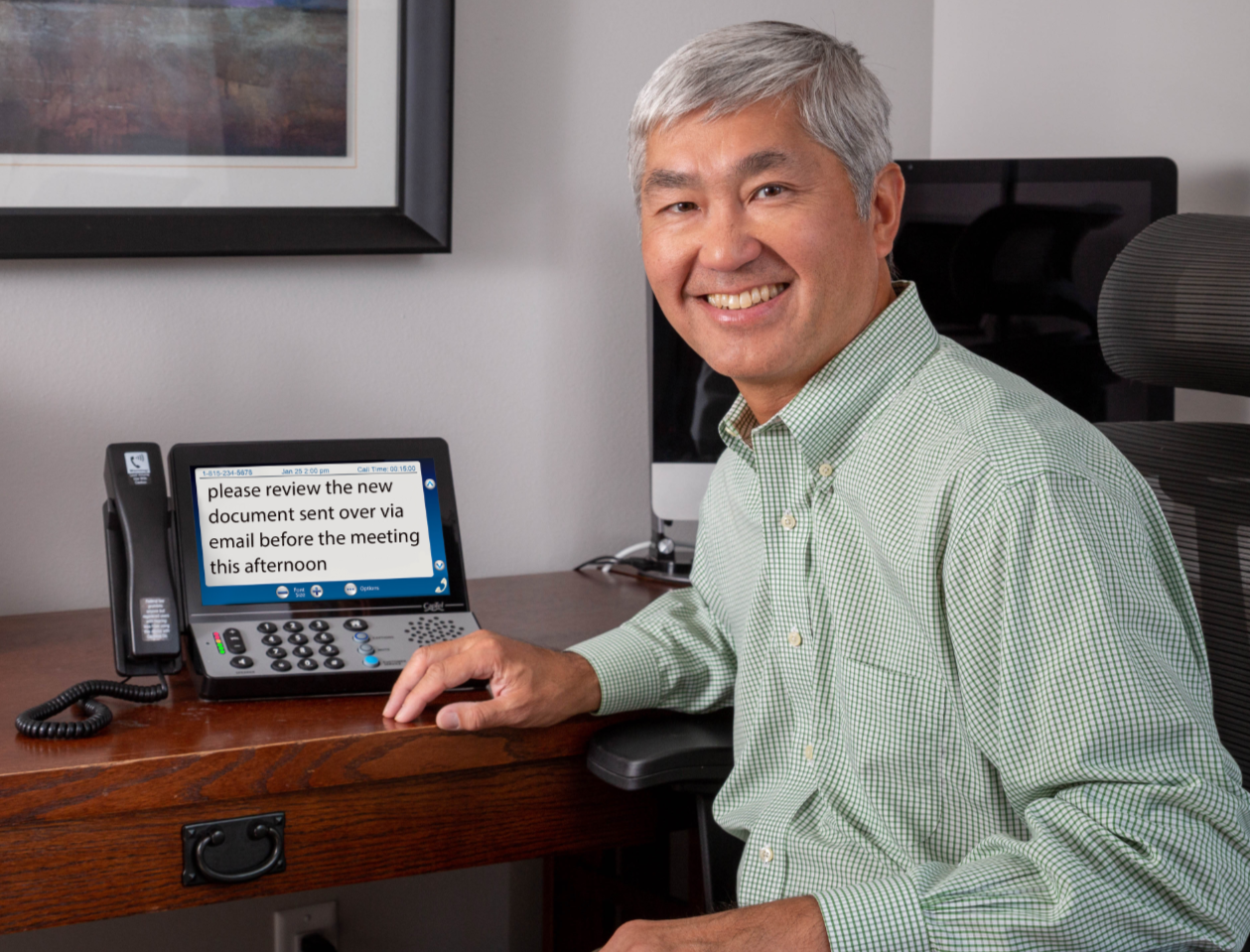
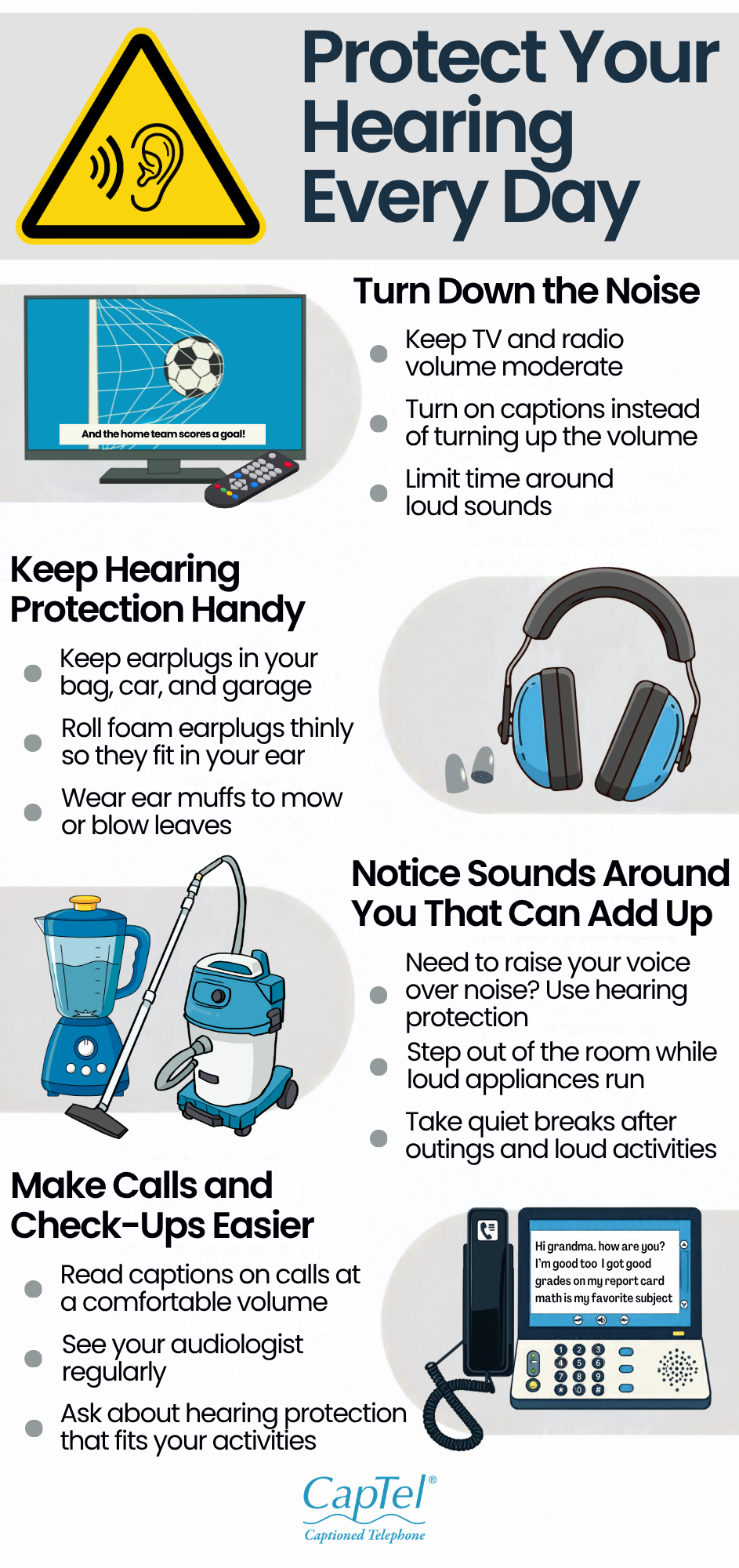
For phone calls at home, a CapTel captioned telephone takes the guesswork out of conversations by displaying every word the caller says on a large, easy-to-read screen. You can learn more about the different models available on the CapTel phones page and find the one that fits your lifestyle best.
Enable Visual Alerts on Your Computer
Computers offer plenty of helpful accessibility features too. On Windows, you can turn on visual notifications that flash your screen when an alert sounds, and Mac computers have a similar “screen flash” option in the accessibility settings. You can also increase system sounds, adjust notification volumes, and choose alert tones that are easier to hear.
For video meetings, platforms like Zoom, Microsoft Teams, and Google Meet all include live captioning. Turning these on before joining a call can make virtual conversations far easier to follow.
Make Text Easier to See
While not directly tied to hearing, larger text and bolder fonts can help you read captions and messages more easily. Both phones and computers let you increase font size, add bold text, and boost contrast in the display settings. Pairing readable text with captions creates a much smoother experience overall.
Optimize Every Conversation
A few thoughtful adjustments to your phone and computer can transform how you communicate every day. From live captions and audio balance to hearing aid pairing and visual alerts, these settings are simple to find and free to use. Take a little time to explore your device’s accessibility menu, you may be surprised by how much easier conversations become.
Take communication clarity to the next level:
- See how CapTel displays captions of your phone conversations at www.captel.com/see-it-in-action
- Check your eligibility for a no-cost CapTel phone at www.captel.com/am-i-eligible
- Get personalized assistance by calling 1-800-233-9130
Learn more: CapTel technology features | Customer testimonials | Get started today

CapTel® is the inventor and technology leader in Captioned Telephones for people with hearing loss. CapTel phones show word-for-word captions of everything a caller says, helping those with hearing loss stay connected with the important people in their lives.